 WazzaBee
How to send a WhatsApp broadcast without getting banned: 3 ways
✦ Key takeaways
- •What are the ways to send a broadcast in WhatsApp?
- •How do you send a broadcast in WhatsApp with a broadcast list?
- •Why doesn't a WhatsApp broadcast reach everyone?
- •How do you send a broadcast in WhatsApp Business?
- •Why do mass broadcasts from a regular number get banned?
There are three ways to send a broadcast in WhatsApp: a broadcast list in the regular app, the same list in the WhatsApp Business app, or officially through the WhatsApp Business API (WABA) using templates approved by Meta. The first two suit a few dozen of your own customers who have saved your number. For hundreds or thousands of recipients without a ban risk, only the official way works.
Below we walk through each method step by step: how to send a WhatsApp broadcast from a phone, why the message does not reach everyone, whether you can broadcast without saving contacts, what gets a number banned and how to run an official broadcast from a computer without getting banned.
A typical story: a shop has 800 customers in its phone, and before the holidays the owner wants to tell everyone about a sale. He copies the text, sends it by hand or installs a program that sends through WhatsApp Web. Half of the messages go out, and the next day WhatsApp says the number is banned. Current orders and conversations with regular customers disappear along with the number.
What are the ways to send a broadcast in WhatsApp?
There are three legitimate ways: a broadcast list in regular WhatsApp, a broadcast list in WhatsApp Business and an official broadcast via WABA. They differ in who receives the message, how many recipients you can reach and how high the ban risk is.
| What we compare | Regular WhatsApp | WhatsApp Business (app) | Official WhatsApp (WABA) |
|---|---|---|---|
| Who receives it | Only people who have you in contacts | Only people who have you in contacts | Everyone who gave consent, no need to save the number |
| Recipients per list | Up to 256 | Up to 256 | Limited by the number's messaging limit, which grows |
| From a computer | Inconvenient | Inconvenient | Yes, from the dashboard in a browser |
| Scheduled sending | No | No | Yes |
| Ban risk | High with mass sending | High with mass sending | Low if you follow the rules |
| Cost | The app costs nothing | The app costs nothing | Subscription plus a fee per message |
How do you send a broadcast in WhatsApp with a broadcast list?
A broadcast list is created in the app on your phone: you pick contacts, write a message, and each person gets it in a private chat without seeing the other recipients. Replies also come to private chats.
- Open WhatsApp on your phone and go to the Chats tab.
- In the tab menu choose "New broadcast" (on iPhone the item is called "Broadcast lists").
- Select recipients from your contacts; one list can hold up to 256.
- Confirm the list and write the message. You can attach a photo, video or file.
- Send it. The list is saved, so next time you do not have to pick people again.
A broadcast list is handy for people you already know: regular customers who write to you themselves, partners, employees. If you need to announce, for example, a change of number, this is the simplest route: people see the message as a normal personal one.
Why doesn't a WhatsApp broadcast reach everyone?
A message from a broadcast list is received only by people who have saved your number in their contacts. This is WhatsApp's own rule, and you will not get any notice that the message did not reach someone.
That is why a broadcast so often seems "not to work": out of 200 people on the list three replied, and the rest simply never got the message. If a customer says they do not see your broadcasts, ask them to add your number to their contacts.
This also answers the common question of how to send a WhatsApp broadcast without saving contacts. In the app you cannot: you need to save recipients' numbers to pick them for the list, and they need to save yours for the message to arrive. Without mutual saving, only an official broadcast via WABA works, where the list is uploaded as a file.
How do you send a broadcast in WhatsApp Business?
In the WhatsApp Business app a broadcast works the same way as in the regular one: through a broadcast list of up to 256 contacts who have saved your number. The business app adds convenience, but the broadcast limits stay the same.
Useful for broadcasting in WhatsApp Business are labels for tagging customers ("New", "Paid", "VIP"), quick replies for frequent phrases and a business profile with address and opening hours. The recipient sees that a business is writing, not a private person.
Do not confuse the WhatsApp Business app with the WhatsApp Business API: they are different products. The app is free and built for one phone; the API is connected through a service, works for a team and supports official broadcasts. A detailed comparison is in our article "How WhatsApp Business differs from regular WhatsApp and the API".
Why do mass broadcasts from a regular number get banned?
WhatsApp bans numbers that receive complaints and that message strangers in bulk. The regular and business apps are made for conversations, not for advertising to someone else's list, so the system quickly notices unusual activity.
A ban is most often caused by one of these:
- messages to people who do not have your number and were not expecting to hear from you;
- reports and blocks from recipients: even a few "Report" taps are dangerous;
- hundreds of identical messages in a row within a short time;
- programs and extensions that send through WhatsApp Web, and purchased number lists;
- a new number that starts messaging heavily from day one.
A ban usually affects the whole number: you lose access to conversations and orders. What to do if it has already happened is covered in our article "WhatsApp banned: what to do". Tips on reducing the risk during active messaging are collected in our piece on bans for mass messages.
How do you send an official broadcast through the WhatsApp Business API?
An official broadcast is sent from a number connected to the WhatsApp Business API, using a template approved by Meta in advance. The recipient does not need to save your number, and you upload the list as a file instead of adding contacts by hand.
This is how it works in the WazzaBee dashboard:
- Connect official WhatsApp. In WazzaBee it takes 15 minutes: log in with Facebook, choose your business and number.
- Create a message template: text up to 1024 characters, variables such as the customer's name, an image or video in the header, buttons. Choose a category: "Marketing" for promotions or "Utility" for orders and bookings.
- Submit the template for Meta review. It usually takes from a few minutes to 24 hours.
- Upload the recipient list as an Excel or CSV file. Extra columns such as "City" can be inserted into the text.
- Choose the channel, template and audience, check the sample message and launch the broadcast now or on a schedule.
Each message is paid from the channel balance at Meta's rates: a marketing message costs $0.086, a utility notification $0.0286. A WABA channel subscription starts at $68 per month. If the balance runs out mid-broadcast, the campaign pauses and resumes from the same place after a top-up. More about templates and launching is in our article "Official WhatsApp broadcasts".
How do you send a WhatsApp broadcast without getting banned?
Write only to people who agreed to hear from you, give them an easy way to unsubscribe and do not send promotions more often than people need them. Even in official WhatsApp, complaints lower the number's quality rating, and Meta responds by cutting limits and may pause a template.
- Your own list only. Customers who bought from you or left their number on your site. Purchased lists lead to complaints.
- An "Unsubscribe" button. In WazzaBee a tap on it sets the number to "Unsubscribed" automatically, and further broadcasts skip it.
- Value in the first line. People should see right away why the message matters to them: a discount, a reminder, an order status.
- A convenient time. The dashboard allows scheduled launches only between 9:00 and 21:00 and suggests 10:00 to 19:00 as better.
- Start small. Send the broadcast to a small part of the list first and watch replies and unsubscribes.
How to build your list and get customer consent is described in our guide to broadcasting to your own list. Which numbers to watch after sending and how they tell you it is time to change the text is covered in our article on WhatsApp broadcast analytics.
Can you send a WhatsApp broadcast from a computer and on a schedule?
Yes, if the broadcast is official. The WazzaBee dashboard opens in a browser on your computer, where you upload the list, choose a template and set the launch time. Broadcast lists in the app are easier to make from a phone.
To schedule a launch, set the date and time or click a ready button such as "Tomorrow at 10:00". At the set time the broadcast starts by itself, with nothing to click. Until it starts you can edit or cancel it. A broadcast will not start if the channel balance is below $0.22: the dashboard warns you right away, not in the middle of the list.
FAQ

An omnichannel platform that connects messengers to your CRM. We link WhatsApp, Telegram, Instagram and 5 more channels to your business in Kazakhstan.
You may also like
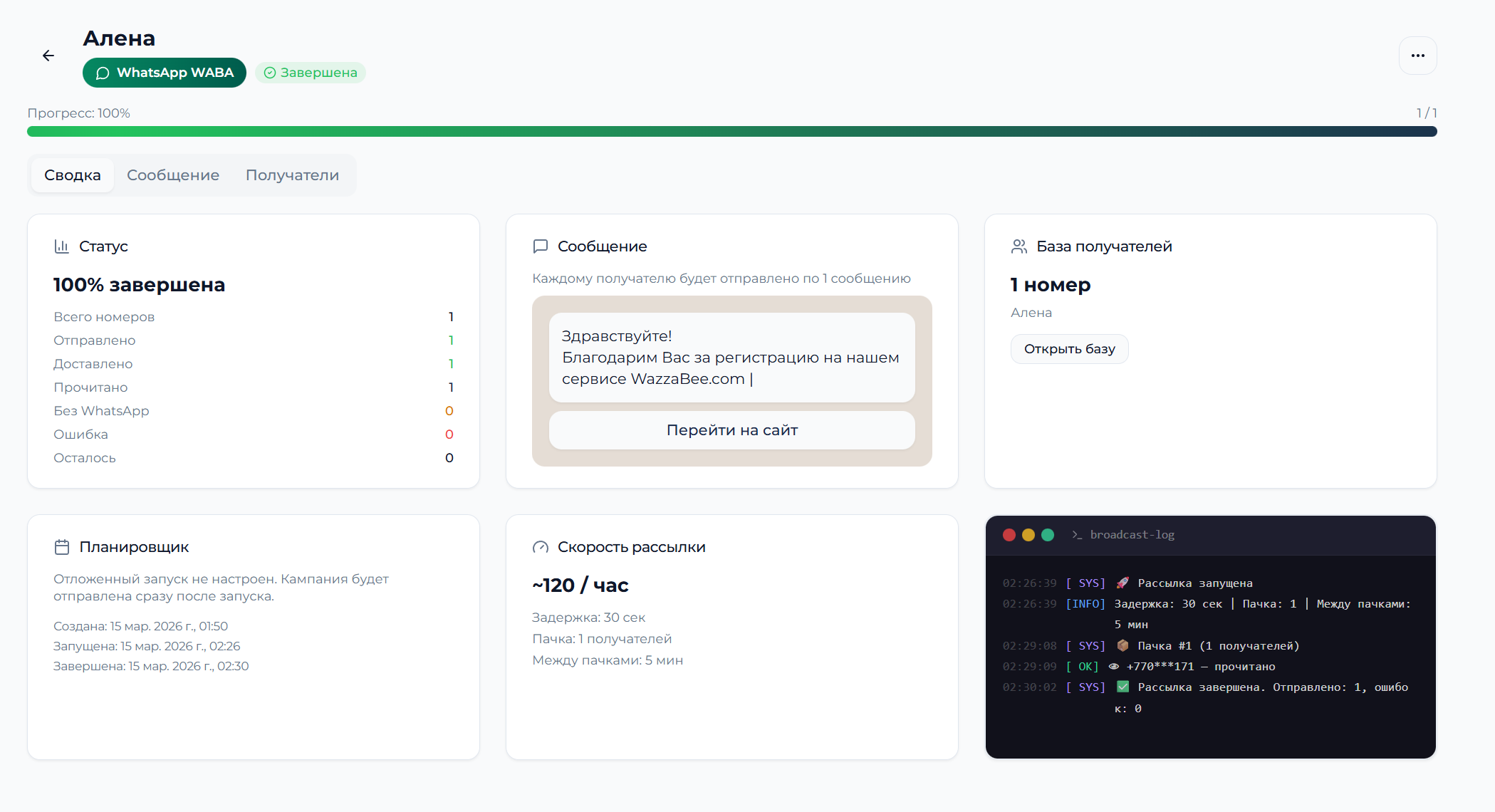
WhatsApp Broadcasts to Your Own Contact List: The Complete Business Guide
A hands-on guide to setting up and running WhatsApp broadcasts to your own customer list using the official API and WazzaBee tools.
WhatsApp Broadcasts in Kazakhstan: Pricing, Playbooks and Real Numbers for 2026
A practical guide to WhatsApp broadcasts for Kazakh business: pricing in tenge from 29 900 ₸, industry playbooks for e-commerce, clinics, restaurants and banks, the best send times for Almaty and Astana, and KZ / RU / EN support in WazzaBee.

WazzaBee Launch: Messenger Integration for Business in Kazakhstan
WazzaBee offers a unique messenger integration for business, providing automation and analytics for your communications.